
PDF security guide

How to Create a Password Protected PDF

Protecting a PDF can mean three different things: limiting edits, requiring a password before the document opens, or placing the file inside an encrypted storage container. This guide shows where each approach fits and when stronger file-level protection is worth the extra step.

Quick answer For ordinary sharing, a PDF open password is usually the simplest choice. For sensitive files that also need local, cloud, or portable protection, an encrypted locker adds a separate security boundary around the PDF instead of relying only on the PDF reader.
Editorial Team • Updated August 18, 2026 • Practical guide
Document Locker AES‑256
Protected storage Keep PDFs together inside an encrypted workspace.
Start with the goal

Choose the protection level before choosing the tool

The strongest method is not always the most convenient one. Match the control to the risk and to how the recipient needs to use the file.

Reduce accidental editing

Use document permissions when the main goal is to discourage printing, copying, or changes after the PDF is opened.

Require a password to view

Use an open password when a recipient should enter a secret before the first page is displayed.

Protect sensitive files at rest

Use an encrypted locker when the PDF should remain protected as part of a larger set of confidential files on the computer.

Move files through USB or cloud storage

Use an encrypted portable or cloud-aware workflow when the file must travel while keeping the protection layer separate from the PDF itself.

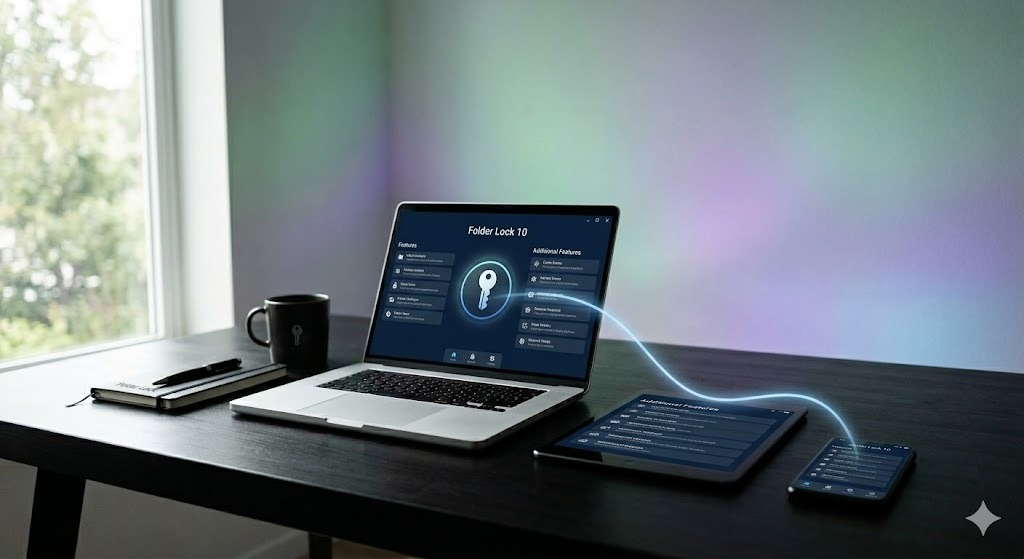
Secure document protection concept for password-protected and encrypted PDF files

Interactive protection picker

Select your main concern. The recommendation appears below.

Recommended: PDF permissions. This is the least disruptive option when you mainly want to limit common actions after the document is opened.
Recommended: a PDF open password. This keeps the recipient workflow simple because a compatible PDF reader can request the password directly.
Recommended: an encrypted locker. Put the PDF inside protected storage so the encryption boundary applies to the file as stored, not only to PDF-level settings.
Recommended: a Portable Locker. Use it when you want an encrypted container that can be copied to removable media or carried as a protected file.
Know the difference

PDF permissions, open passwords, and encrypted storage solve different problems

PDF security settings live inside the document format. An encrypted locker sits outside the PDF and protects the file as part of a storage system. Keeping those concepts separate prevents a common mistake: treating a “do not print” setting as if it were the same thing as encrypting the stored file.

Permission control

Permissions password

Designed to limit actions such as editing, copying, or printing after the document is already open. This is an access-policy control, not a substitute for a strong open-password or storage-encryption strategy.

Document access

Open password

Requires a password before the PDF reader displays the document. The real strength depends on the PDF encryption used by the creating software and on the quality of the password.

Storage protection

Encrypted locker

Protects the file within an encrypted storage area. Folder Lock’s product documentation identifies AES‑256 as the encryption used for its locker-based file protection.

Encryption concept explaining how protected document data becomes unreadable without authorized access
Important distinction:

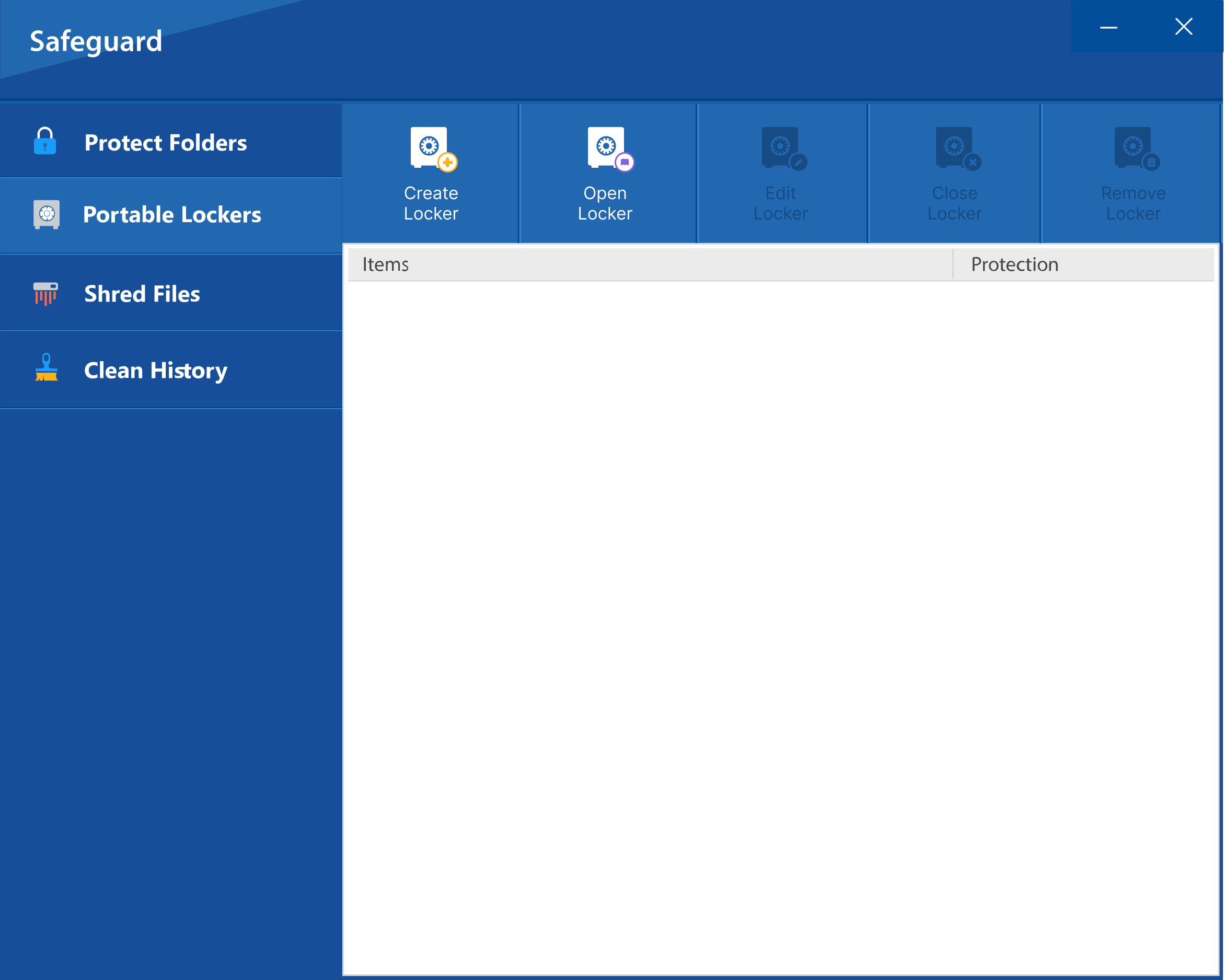
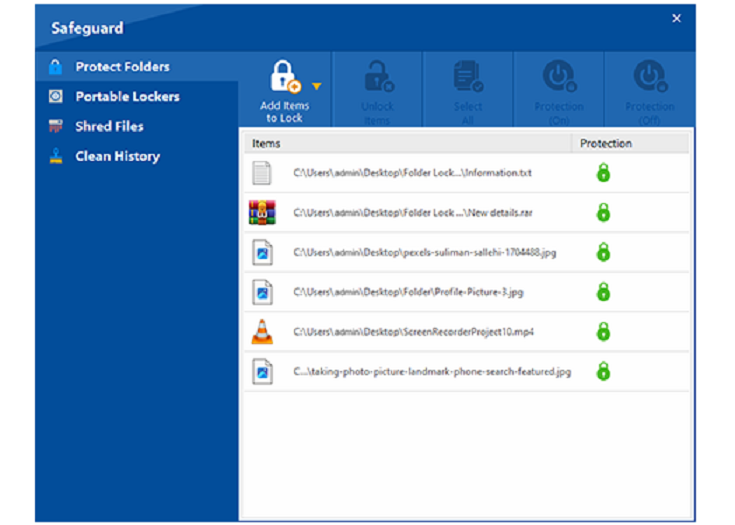
Folder Lock’s Protect Folders feature is for hiding and restricting access to files, folders, or drives. It is not the same feature as an encrypted Locker. Use a Locker when encryption is the requirement.

Folder Lock 10 Protect Folders screen showing file and folder access-control options
Four methods

How to create a password-protected or encrypted PDF workflow

The first three methods keep protection inside the PDF. The fourth protects the PDF as a file inside encrypted storage.

Method 1: Use Preview on Mac for an open password

Easy Built in Good for direct sharing
  1. Open the PDF in Preview.
  2. Use the export command from the File menu.
  3. Enable the encryption option in the export dialog.
  4. Enter and confirm the password.
  5. Save the new copy and test it before sending it.

Menu wording can vary with macOS versions. The key check is that the newly exported file asks for a password before showing the document.
Mac encryption software concept for protecting sensitive PDF documents on macOS

Method 2: Export a protected PDF from Microsoft Word

Easy Best when the source is a Word file
  1. Finish the document in Word and open the Save As or export workflow.
  2. Choose PDF as the output format.
  3. Open the PDF-related options available in your version of Word.
  4. Enable password encryption if the option is available, then set the password.
  5. Save the PDF and verify the password prompt using a separate reader.

Method 3: Apply PDF security in Adobe Acrobat

Moderate PDF-native controls Viewing or permissions
  1. Open the PDF in Acrobat.
  2. Open the document protection tools.
  3. Choose whether the password is required for viewing, editing, or both.
  4. Set a strong password and apply the protection.
  5. Close and reopen the PDF to confirm the behavior you intended.

Method 4: Place the PDF inside an encrypted Desktop Locker

AES‑256 locker Windows desktop workflow Multiple files at once
  1. Install Folder Lock and sign in to the desktop application.
  2. Open Desktop Locker.
  3. Move or copy the PDF into the opened Locker location.
  4. Return to Folder Lock and close/encrypt the Locker when you are finished working.
  5. Reopen the Locker whenever you need normal access to the PDF again.

This approach is useful when the PDF belongs with other sensitive files because the Locker can hold a collection of documents rather than forcing you to configure a separate PDF password for every file.

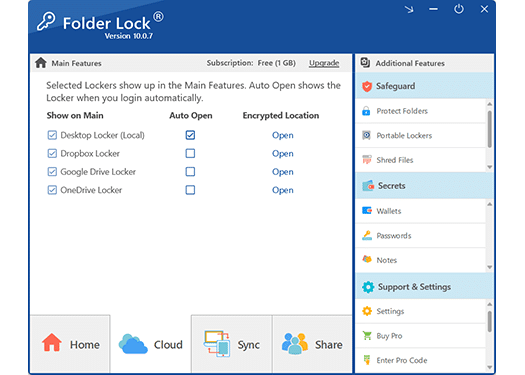
Folder Lock 10 Desktop Locker screen for storing PDF files in an encrypted workspace
Product fit

Where Folder Lock adds value beyond a PDF password

Folder Lock is most relevant when you need a repeatable encrypted-storage workflow around PDFs: local Locker storage, encrypted cloud Locker options, device sync, protected sharing, or Portable Lockers.

Folder Lock 10 security feature banner highlighting encrypted file protection
Folder Lock 10 software boxshot for Windows file encryption and privacy protection
Desktop Locker READY
→ Open protected workspace
→ Add confidential PDFs
→ Close / encrypt Locker
→ Sync through chosen cloud Locker if needed
Protected workflow complete
01
AES‑256 encrypted Lockers

The product documentation describes AES‑256 protection for desktop and cloud Locker data.

02
Cloud Locker choices

Dropbox, Google Drive, and OneDrive can be used as Locker destinations for encrypted files and synchronization.

03
Sharing without using one shared Locker password

The sharing workflow is designed for authorized Folder Lock users, with recipients using their own accounts/credentials.

04
Portable Locker option

Pro users can create an encrypted portable container for removable media or file transfer.

Beyond one computer

Portable, cloud, and cross-device PDF workflows

These features matter when the PDF cannot stay on one Windows PC.

Desktop Locker

Best for local Windows storage when the PDFs should remain inside an encrypted workspace on the computer.

Google Drive / Dropbox / OneDrive Lockers

Useful when you want the encrypted Locker workflow to participate in a cloud-sync routine through a supported provider.

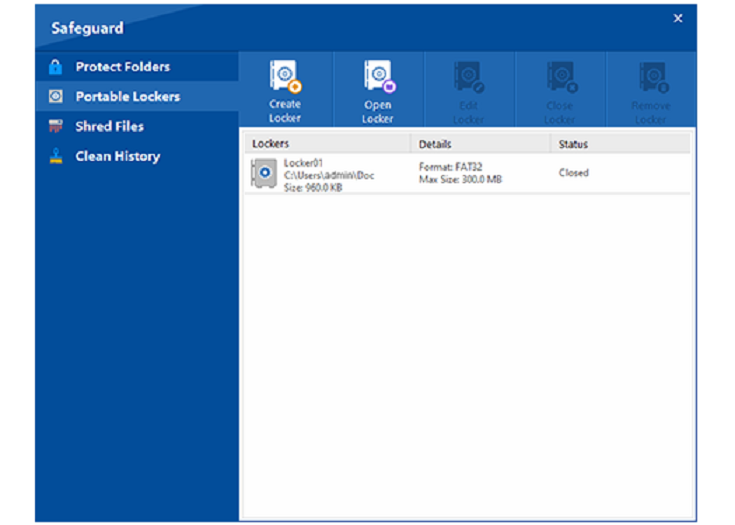
Portable Lockers

Designed for carrying encrypted data on USB/external media or moving the protected container as a file. The receiving computer needs compatible Folder Lock access.

Mobile and macOS companion access

The product ecosystem includes iOS, Android, and macOS apps so synchronized protected content can be used across additional devices.

Folder Lock Portable Locker interface for moving encrypted PDF files on removable media
Folder Lock cloud features screen for encrypted file storage and synchronization
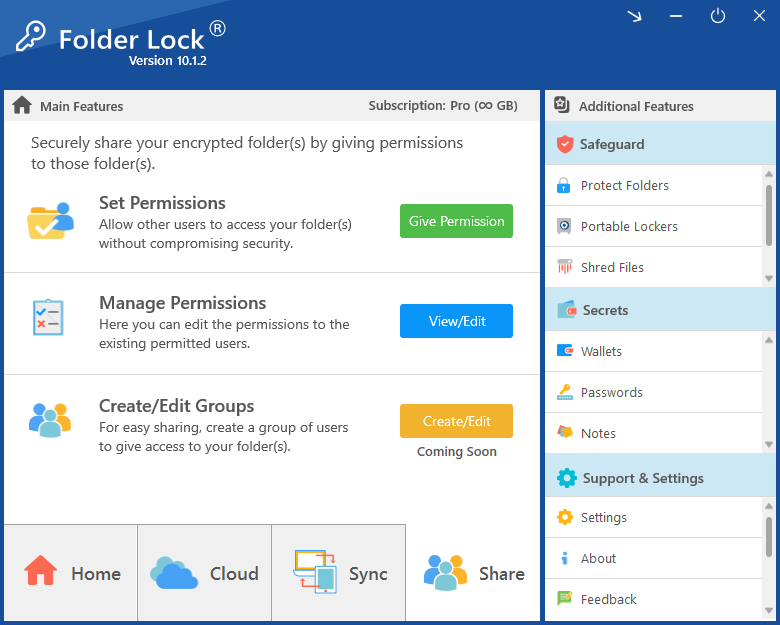
Folder Lock 10 encrypted file sharing permissions screen for authorized users
Cross-platform synchronization concept for protected files across desktop and mobile devices
Sharing requirement:

Folder Lock’s encrypted sharing workflow is not the same as emailing a standard password-protected PDF. The research material indicates that recipients need Folder Lock installed/registered for the protected sharing workflow.

Plans

Folder Lock Free vs. Pro

The supplied product information lists a free tier and a Pro tier. The controls below summarize the limits that matter most to a PDF-security workflow.

Folder Lock Free

$0listed price
  • Locker size up to 1 GB
  • Synchronization across up to 2 devices
  • Mobile apps supported
  • Secrets, file shredding, and history-cleaning features are listed

Free-tier limits: Portable Lockers, Protect Folders, and user sharing are shown as Pro-only in the supplied comparison.

View official product page

Folder Lock Pro

Folder Lock 10 Pro boxshot representing the paid file encryption and protection plan
$39.95listed price in the supplied material
  • Unlimited regular Locker size in the plan comparison
  • Synchronization across up to 5 devices
  • Unlimited share users listed
  • Portable Lockers included
  • Protect Folders included
  • File shredding and history cleaning included

Pricing, discounts, and plan packaging can change; confirm the current checkout terms before purchase.

Check current Pro offer
Side by side

Which PDF protection method fits your situation?

PDF open password

Recipient setupLow
Protects file before viewingYes
Protects a whole folderNo
Good for direct emailYes
Best fitSimple document sharing

PDF permissions

Recipient setupLow
Stops initial viewingNo
Limits edit/print actionsYes
Protects a whole folderNo
Best fitUsage restrictions

Folder Lock Locker

Protection modelEncrypted storage
AES‑256 listedYes
Multiple PDFs togetherYes
Cloud Locker optionsYes
Best fitOngoing sensitive-file workflow

Protect Folders

Protection modelHide / restrict access
AES Locker encryptionNo
Safe Mode hidingListed
Free tierNo
Best fitConcealment without encryption
Folder Lock 10 Lockers screen comparing local and cloud encrypted storage options
Before choosing

Platform fit, tradeoffs, and limitations

A secure workflow is only useful if it matches how you actually move and open the files.

Primary desktop workflow Folder Lock 10 is Windows-centered

The Desktop Locker, Protect Folders, shredding, and related Safeguard workflows in the research are described around the Windows desktop application.

Cross-device access Companion apps exist

macOS, iOS, and Android apps are part of the ecosystem, particularly for synchronized protected content and mobile access.

Recipient friction Encrypted sharing needs Folder Lock

If the recipient cannot install or use Folder Lock, a standard PDF open password may be the more practical delivery method.

Portable Locker capacity Portable Locker sizing differs from regular Locker limits

The research shows Pro Portable Locker creation with selectable capacity up to 2 TB, while the Pro plan table lists regular Locker size as unlimited.

Password handling Store credentials carefully

The product documentation emphasizes that passwords are not stored as a recoverable backdoor. Separate how-to material also references account/password recovery options, so recovery can depend on which credential or Locker is involved.

Cloud scope Supported Locker providers are specific

The supplied material names Dropbox, Google Drive, and OneDrive. Do not assume the same Locker integration exists for every cloud service.

Windows compatibility concept for desktop file encryption and protected PDF workflows
Troubleshooting

Common problems and checks

The PDF opens without asking for a password

You may have applied only a permissions restriction rather than an open password. Recheck the protection type and test the file in a different PDF reader after fully closing it.

The PDF is missing after I moved it into Desktop Locker

That may be expected if the Locker is closed or encrypted. Reopen/decrypt the Locker from Folder Lock and then open its location before looking for the file.

I used Protect Folders and expected the PDF to be encrypted

Protect Folders is the wrong control for that goal. It is designed to hide and restrict access to the item. Move the PDF into an encrypted Locker when you need AES‑256 storage encryption.

A recipient cannot open a Portable Locker

The research indicates that the other computer needs compatible Folder Lock access and the correct Portable Locker password. A Portable Locker is not the same as a normal PDF that any reader can unlock.

Secure data unlocking concept for regaining access to encrypted PDF files and portable lockers
FAQ

Frequently asked questions

No. Hiding changes visibility/access behavior. Encryption changes how the data is stored so that the protected file cannot be read normally until it is decrypted.
Use a PDF password when the recipient needs a simple document-level workflow. Use an encrypted Locker when you are protecting a collection of files, keeping them on a computer long-term, or using Folder Lock’s cloud/portable workflow.
Close every open copy of the PDF, reopen the saved file, and confirm that the reader asks for the password before rendering the first page.
The supplied product documentation identifies AES‑256 for desktop and cloud Locker encryption.
No. Protect Folders is described as a hide/access-control feature. Use Desktop Locker or a supported cloud Locker when you specifically need encrypted storage.
The supplied comparison lists a 1 GB Locker limit and up to 2 sync devices. Portable Lockers, Protect Folders, and user sharing are shown as Pro features.
The supplied plan comparison lists unlimited regular Locker size, up to 5 sync devices, unlimited share users, Portable Lockers, and Protect Folders for Pro.
Dropbox, Google Drive, and OneDrive are the cloud Locker options described in the supplied product material.
Yes for the Folder Lock encrypted sharing/Portable Locker workflows described in the research. If you need a file that can be opened by a normal PDF reader, use PDF-native password protection instead.
The product material describes sync through cloud Lockers and companion apps for iOS, Android, and macOS, with device-count limits determined by the plan.
Bottom line

Use the least complicated control that actually matches the risk

A normal PDF open password is easier for one-off sharing. An encrypted Folder Lock Locker makes more sense when the file belongs to an ongoing private-storage, cloud-sync, or portable-security workflow. Keep Protect Folders in its proper category: concealment and access restriction, not Locker encryption.

Explore Folder Lock
404

Page not found

We couldn’t find the page you requested. The address may be outdated, incomplete, or no longer available.