
How to Create a Password Protected PDF from Any Document
Whether you need to lock a sensitive invoice, restrict a contract from being printed, or securely share records via cloud storage, learning how to create a password protected PDF file is essential. This guide covers built-in OS methods, free tools, and robust encryption software.
Updated: October 2023·14 min read·Editorial Team
Quick Answer
To password protect a PDF natively: On Mac, open the file in Preview, click File > Export, check the "Encrypt" box, and set a password. On Windows using Word, go to File > Save As, choose PDF, click Options, and check "Encrypt the document with a password." For batch processing or advanced AES-256 encryption across multiple file types, dedicated desktop software is recommended over browser-based tools.
When you create a password protected PDF, you are fundamentally altering how the document handles access requests. But not all passwords are created equal.
A common mistake is assuming that any password means the document is fully encrypted. Some basic tools only add a "flag" telling the PDF reader to ask for a password, which can be easily bypassed by non-standard readers. True document password protection relies on actual encryption standards, like AES-128 or AES-256, mathematically scrambling the file contents.
Permissions Password vs Open Password — Explained
When setting up security, you generally have two distinct options:
Document Open Password: This is a strict gatekeeper. The user cannot view the contents of the PDF at all without entering the password.
Permissions Password (Master Password): The document can be opened and read by anyone, but actions like printing, copying text, editing, or adding comments are locked behind the password.
Password Strength Evaluator
Test the resilience of the password you plan to use for your document.
Strength: --Crack time: --
Native Methods: How to Create a Password Protected PDF Without Software
If you only have one or two documents to secure, you can often use tools already built into your operating system or office suite.
Method 1: Create a Password Protected PDF on Mac (Preview)
MacOS has a built-in PDF viewer called Preview that handles basic encryption smoothly.
Open your PDF file using the Preview app.
Click File > Export in the menu bar.
Select PDF as the format.
Check the Encrypt box at the bottom of the export window.
Enter your desired password, verify it, and click Save.
Limitations: This method is excellent for single files but cannot batch-protect multiple documents simultaneously.
Method 2: Create Password Protected PDF from Word (Windows)
If your document originates in Microsoft Word, you can convert and encrypt it in one step before ever sending it.
Open your document in Microsoft Word.
Click File > Save As and choose your destination.
In the "Save as type" dropdown menu, select PDF.
Click the Options... button below the dropdown.
At the bottom of the dialog, check Encrypt the document with a password and click OK.
Type your password twice to confirm and click Save.
Method 3: How to Create a Password Protected PDF Online (Free Tools)
There are dozens of free, browser-based tools available if you search for "make a pdf password protected." You upload your file, set a password, and download the locked version.
Warning on Document Security: While convenient, you are uploading your potentially sensitive document to a third-party server. If the document contains financial data, legal contracts, or PII (Personally Identifiable Information), using a free web tool poses a severe privacy risk. Compliance frameworks (like HIPAA or GDPR) generally prohibit uploading unencrypted sensitive files to unvetted cloud tools.
Head-to-Head: PDF Protection Methods Compared
Choosing the right method depends on your volume of files and the sensitivity of the data.
Method
Difficulty
Encryption Standard
Batch Protection
Offline Privacy
Mac Preview (Native)
Low
RC4 / AES-128
No
Yes
MS Word Export
Low
AES-128
No
Yes
Free Online Tools
Very Low
Varies
Rarely
No (Cloud upload)
Dedicated Software (e.g., Folder Lock)
Low
AES-256 (Military Grade)
Yes
Yes
Verdict: Native tools are fine for one-offs. Dedicated desktop software is the safest choice for sensitive data, batch processing, and ensuring files remain offline during encryption.
The Tool We Recommend for Most Users
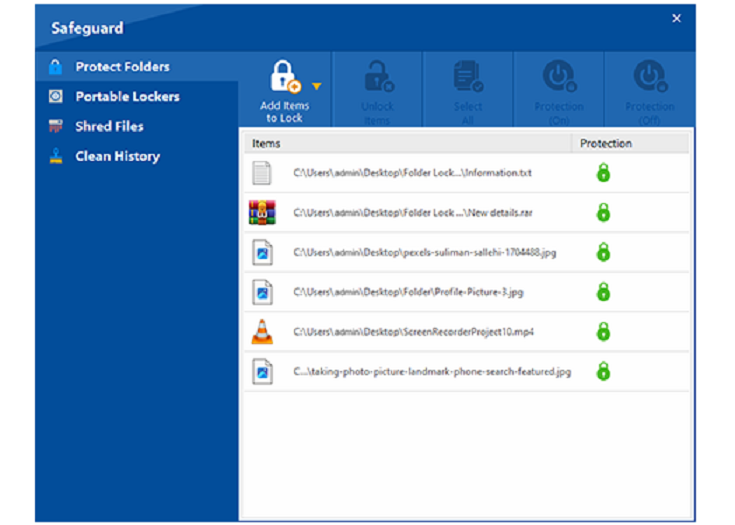
Of all the options we've tested, relying on built-in tools becomes tedious if you manage more than a few files, and free online tools are a massive privacy risk. This is why we recommend Folder Lock for handling document security.
AES-256 EncryptionCloud Sync (Dropbox/Drive)Windows, Mac, iOS & AndroidPortable USB Lockers
Folder Lock is developed by NewSoftwares.net. Available for Windows.
Beyond Basic Passwords: Why Use Software?
If you choose to use a dedicated tool like Folder Lock rather than relying on Word or Mac Preview, your workflow changes significantly.
1. Universal Format Coverage
You don't need to look up "how to create password protected pdf" and then separately search for how to lock an Excel file. Software secures the file structure itself, applying the same AES-256 encryption regardless of whether it's a PDF, DOCX, or JPG.
2. Batch Password Protect PDF Files
If you have an archive of 50 patient records or financial statements, doing them one by one in Acrobat or Preview takes hours. Dedicated software allows you to highlight a folder of PDFs and encrypt them all simultaneously.
3. No Cloud Interception
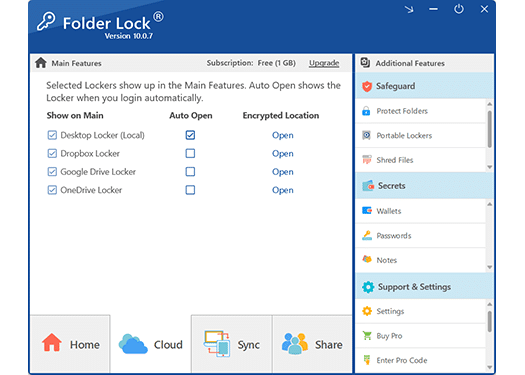
Because the encryption happens locally on your machine's hardware, your raw, unencrypted PDF is never transmitted over the internet to a third-party server. Advanced platforms like Folder Lock even let you securely sync these locally encrypted vaults to Dropbox, Google Drive, or OneDrive without exposing the underlying data to the cloud provider.
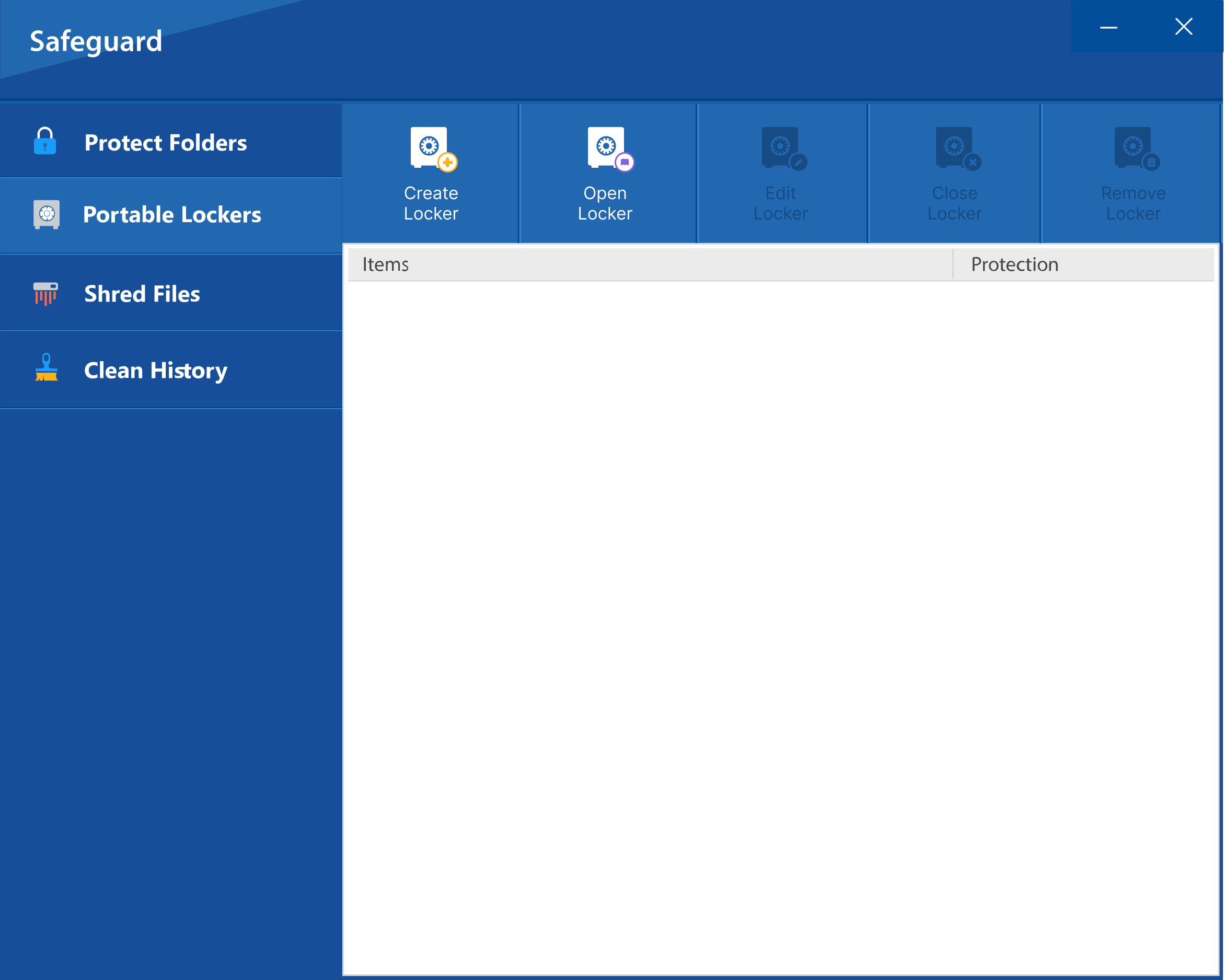
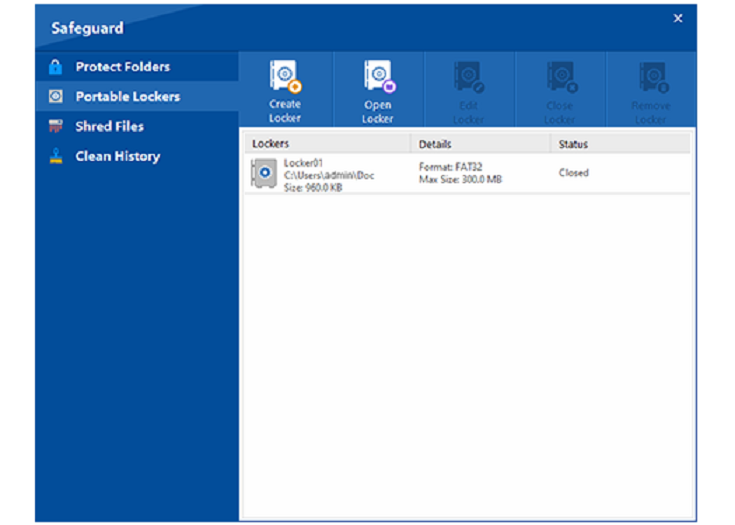
4. Portable Lockers for USBs & Email
Need to hand off a sensitive contract on a flash drive? Software solutions allow you to generate self-contained, password-protected executable lockers. This means you can transport your locked PDFs on a USB stick or via email, and the recipient can unlock them without compromising the security of the transport method.
Deep Dive: Encryption Standards & Vulnerabilities
RC4 vs AES-128 vs AES-256
Older PDF editing software often defaults to 40-bit or 128-bit RC4 encryption. RC4 is now considered a deprecated and vulnerable protocol. Modern implementations (like what is used by Microsoft Office export, current Adobe Acrobat, and Folder Lock) use the Advanced Encryption Standard (AES).
AES-128 is highly secure and standard for most commercial applications. AES-256 is the military standard. If your software gives you a choice, always select AES-256 for document password protection.
How Does a Password Manager Work with Protected PDFs?
Many users wonder if they can use password managers (like Bitwarden or 1Password) to open these files. While password managers can store the complex text string you used to lock the PDF, they generally cannot auto-fill the password prompt inside a desktop PDF viewer like Adobe Reader. You will need to copy the password from your manager and paste it into the document prompt manually.
Complete Eradication: The Role of File Shredding
A major vulnerability in document security is the original, unprotected draft. If you encrypt a PDF but simply move the original to your computer's recycle bin, the raw data can still be recovered using forensic software. Comprehensive security suites solve this by including secure deletion tools that overwrite the physical sectors of your hard drive using Department of Defense (DoD) standards or the rigorous 35-pass Peter Gutmann method, ensuring the original file is mathematically destroyed.
Hack Attempt Monitoring
Standard PDFs do not tell you if someone is trying to guess your password. Dedicated desktop vaults provide active defense mechanisms. If an unauthorized user attempts to brute-force your master password, the software can log the incorrect attempts and, upon reaching a set threshold, automatically log you out of Windows or shut down the machine completely to thwart the attack.
Troubleshooting & Document Recovery
Protecting a document is easy; managing access when things go wrong is harder. Here are the most common issues users face.
"Couldn't be opened for import if the file is password protected try removing the password google sheets"
The Fix: Google Drive and Google Sheets cannot natively decrypt password-protected Microsoft Office files or complex PDFs for inline viewing. You must download the file to your local machine, open it using your desktop software (providing the password), remove the password protection locally, and then re-upload the unprotected file if you wish to edit it in Google Sheets.
How to remove password protection from a document I own
If you know the password but want to remove it for easier sharing:
On Mac Preview: Open the file (enter the password). Hold the Option key, click File > Save As, and uncheck the Encrypt box. Save the new copy.
On Adobe Reader/Acrobat: Open the PDF. Go to File > Properties > Security. Change the Security Method from "Password Security" to "No Security." Save the file.
Forgot your Folder Lock password?
If you used a robust tool like Folder Lock to encrypt your files, there is no simple "hack" to bypass it—that is the point of the software. Premium encryption software is built with a strict "no backdoors" policy. Your master password is never transmitted to the developer's servers.
If you forget your master password, the encrypted data is permanently inaccessible. There is no hidden reset link or magic recovery key for locally encrypted vaults. To avoid catastrophic data loss, it is imperative that you store your master password in a reputable password manager.
Security Note: We do not endorse or link to PDF cracking or bypass tools. If you have lost the password to an AES-encrypted file, the data is mathematically irretrievable.
What Users Say About Batch PDF Protection
"I used to spend Friday afternoons manually saving out 30 different Word docs as password-protected PDFs using the native save dialog. Switching to a dedicated local tool cut a two-hour chore down to three minutes."
— Sarah M., HR Director
"We handle sensitive legal discovery. Using free online PDF lockers was completely against our compliance rules. Having a desktop utility that locks folders of PDFs offline is non-negotiable for us."
— David T., Compliance Officer
Pricing and Availability
If you decide to upgrade from native OS tools to Folder Lock, here is how the pricing breaks down.
Free Trial
You can download the trial version of Folder Lock at no cost to evaluate the interface and basic locking mechanisms.
Yes. You can protect a PDF using native OS tools (like Mac Preview), Office suites (like Microsoft Word's export feature), Adobe Acrobat, or dedicated third-party encryption software.
Is PDF password protection the same as encryption?
Not always. A simple permissions password may only set a flag asking the reader not to print or edit, which can be bypassed. True password protection uses encryption (like AES-256) to scramble the document contents so it cannot be read without the key.
How do I protect a document without the recipient needing software?
If you use the standard PDF password protection (e.g., via Word export or Adobe), the recipient only needs a standard PDF reader (like Chrome, Edge, or Adobe Reader) and the correct password to open the file. They do not need the encryption software you used to lock it.
How to create a password protected PDF in Adobe Reader?
The free version of Adobe Acrobat Reader does not allow you to create password-protected PDFs; it only allows you to view them. To encrypt a file via Adobe, you need a paid subscription to Adobe Acrobat Pro.
Can I batch password protect multiple documents?
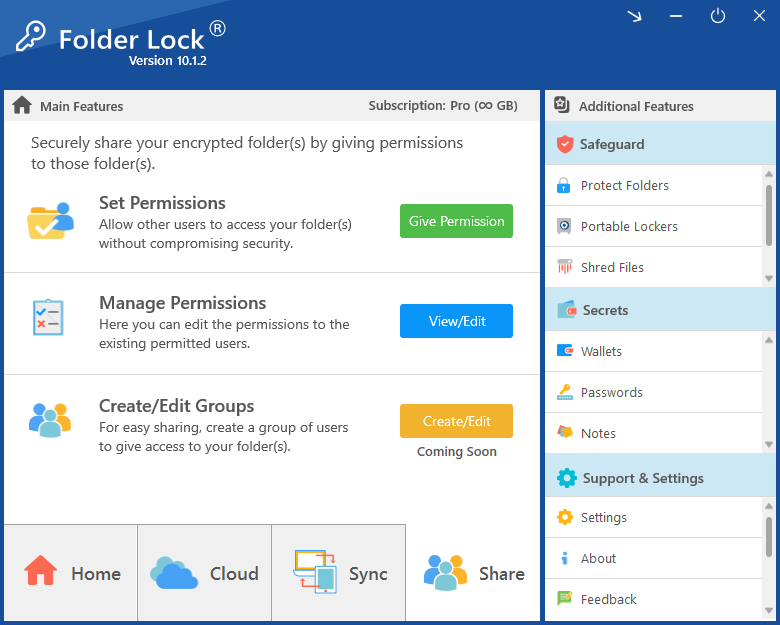
Native tools like Mac Preview and Word do not support batch processing. To password protect multiple PDFs at once, you must use desktop software designed for batch encryption, such as Folder Lock.
What happens when I share a password-protected document via cloud?
If you upload an encrypted PDF to Dropbox, Google Drive, or OneDrive, the file remains secure. The cloud provider cannot index the text inside the file for search, and anyone who intercepts the shared link will still need the password to view the document.
How to open folder lock if password forgotten?
If you lose the master password for an AES-encrypted Folder Lock vault and do not have your recovery serial number from purchase, the data cannot be decrypted. Always keep your master password in a secure password manager.
The Bottom Line
If you only need to secure a single document, exporting it securely via Microsoft Word or Mac Preview is the most efficient method. However, if you regularly handle sensitive client files, need to batch-protect documents, or require strict AES-256 offline encryption, relying on a dedicated desktop tool is the safest and fastest approach.